
Refer a friend module
The Refer a Friend module is a powerful feature that enables vendors to share lead forms through a public link, allowing unregistered visitors to submit referrals. This feature helps vendors seamlessly collect new leads from external sources, improving outreach and boosting potential business opportunities by leveraging existing partner networks and customer relationships.
When the Refer a Friend module is enabled for a form, the system generates a unique shareable link that can be distributed through various channels. Any non-logged-in user who accesses this link can submit form data, which will be automatically recorded under the vendor with the lead source identified as "Refer a Friend". This attribution system ensures proper tracking of referral-generated leads and enables vendors to measure the effectiveness of their referral campaigns.
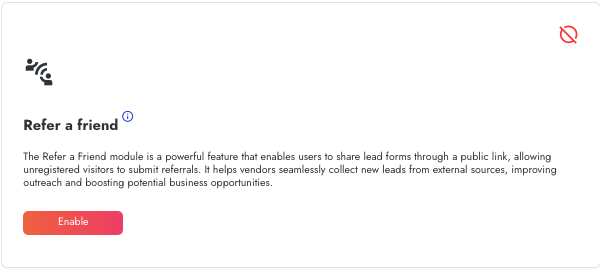
Configuring Refer a Friend Module
To configure the Refer a Friend module for your lead forms, follow these configuration steps:
- Navigate to the Lead Forms section in your Partnerplace administration panel. Locate the form you wish to enable for referral submissions and access its settings page. A default form for refer a friend has been added to the forms - you may or may not use it.
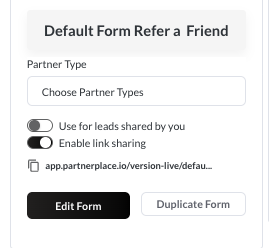
- Enable the "Enable Link Sharing" toggle on the desired form. This toggle is the primary control that activates the public link sharing functionality for that specific form. Once activated, the toggle will display in an enabled state with a red/orange color indicator.
- After enabling link sharing, a unique link will appear below the toggle, typically in the format "app.partnerplace.io/"YOURFORMLINK"" or similar. This is your form's public referral link that you can copy and share with anyone.
The system also provides a centralized view of all platform links in the "Platform Links" section of Settings, where you can find your "Refer a friend page" URL alongside other important platform links. This URL can be accessed at any time to retrieve the referral form link without navigating through the form settings.
Form Settings for Refer a Friend
When configuring a form for the Refer a Friend module, several settings control how the form behaves:
- Partner Type Selection: You can choose which partner types should have access to create and manage Refer a Friend forms. The "Choose Partner Types" dropdown allows you to select multiple partner categories that can utilize this referral functionality.
- Use for leads shared by you: This toggle controls whether the form is used for leads that you share with others. When enabled, the form becomes part of your active lead sharing workflow.
- Enable link sharing: This is the critical toggle that activates the public referral link functionality. When enabled, the system generates a unique URL that can be shared publicly, allowing unauthenticated users to submit the form.
- The form management interface provides standard actions including "Edit Form" and "Duplicate Form" buttons. These allow you to modify form settings or create copies of existing referral forms for different campaigns or partner segments.
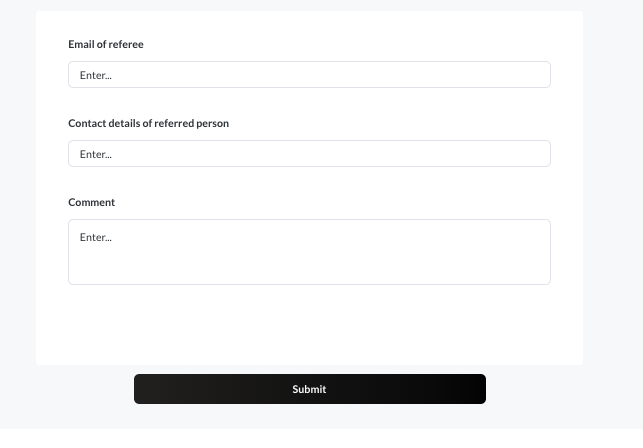
The default Refer a Friend form typically includes specific fields designed to capture both referee and referred party information:
- Email of referee: This field captures the email address of the person making the referral. This information helps identify who is referring new leads to your organization and enables proper attribution of referral-generated business.
- Contact details of referred person: This field collects the contact information for the person being referred. This is the primary lead information that vendors need to follow up with potential new customers or partners.
- Comment: An optional text area allows referees to provide additional context about the referral. This might include information about the relationship, specific needs of the referred party, or why they would be a good fit for your products or services.
Public Access and Authentication
The Refer a Friend feature specifically allows non-logged-in users to submit form data. This means that anyone with the referral link can access and complete the form without creating an account or authenticating with Partnerplace.
This unauthenticated access significantly reduces friction in the referral process, making it easy for anyone to submit referrals on your behalf. The system automatically handles these public submissions differently from authenticated partner submissions, ensuring proper lead source attribution.
Submissions made through the public referral link are automatically associated with the vendor who owns the form and tagged with "Refer a Friend" as the lead source. This automatic attribution ensures accurate tracking without requiring manual intervention or lead source selection by the submitter.
Troubleshooting Tasks Module
If you encounter issues with the Tasks module, try these troubleshooting steps:
Public Referral Link Not Working Without Authentication
- The form's authentication settings may not be properly configured, or the "Enable link sharing" toggle is disabled
- Test the referral link across different browsers and devices. Some browser security settings or extensions may interfere with public form access.
Form Header or Description Not Displaying Correctly
- Review the form header and description fields in the form editor. Remove any complex formatting and rebuild using the built-in rich text editor tools (bold, italic, headers, etc.). Avoid copying and pasting content directly from word processors, as this can introduce incompatible formatting codes.
- Test the form display in multiple browsers to identify browser-specific rendering issues. Create a simple test template with minimal formatting to isolate the problem.
Broken Links in Platform Links Section
- Verify that the referenced form still exists by navigating to the Lead Forms section. If the form was deleted
- Check that your platform URL configuration is correct and hasn't changed
If you continue to experience issues after trying these steps, please contact Partnerplace support for further assistance at support@partnerplace.com
When contacting support, please provide:
- A detailed description of the issue
- Steps to reproduce the problem
- Any error messages you've encountered
- Your account information (username/email)
This will help the support team address your concerns more efficiently.