
Partner Connect module
PartnerConnect enables users to find and connect with potential business partners through Partnerplace. To begin using this feature, navigate to https://app.partnerplace.io/modules and enable the PartnerConnect module at https://app.partnerplace.io/marketplace.
Profile Configuration
The system requires configuration of two main profile components:
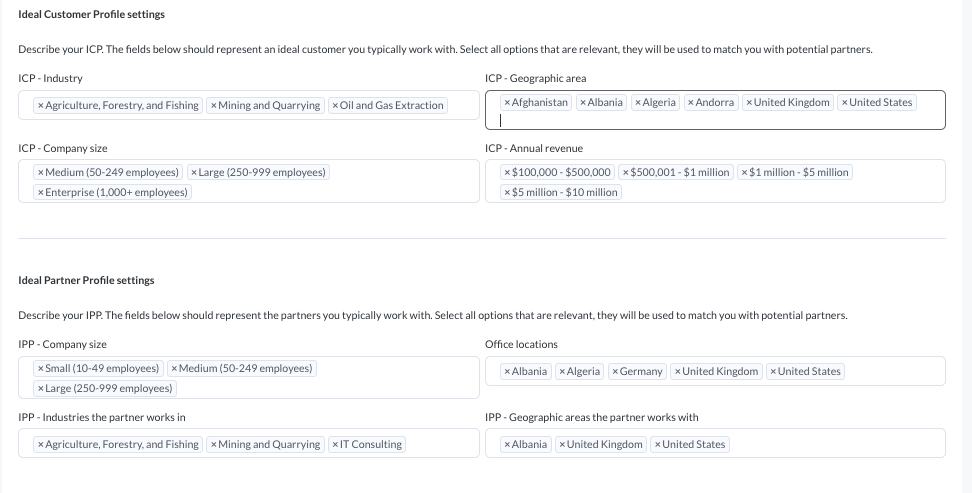
Ideal Customer Profile (ICP)
Your ICP should include:
- Industry sectors you serve
- Geographic areas you target
- Company size preferences of your customers
- Annual revenue preferences for your customers
Ideal Partner Profile (IPP)
Your IPP should specify:
- The company size of the
- Office locations
- Industries you work with
- Geographic areas you serve
Partner Matching System
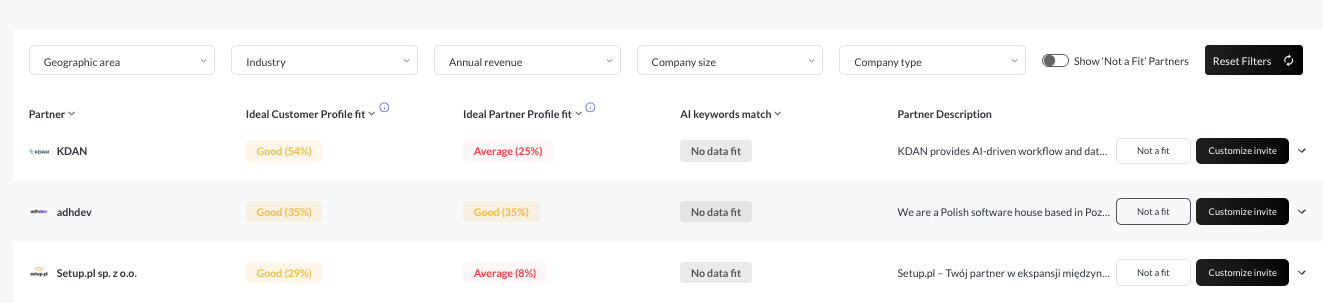
The platform uses a sophisticated matching algorithm that activates when at least one corresponding value matches between partners. Both ICP and IPP components consist of 4 values, each carrying equal weight in the calculation.Match categories are determined by fit percentage:
- Average: Below 50%
- Good: 50% and above
- Great: 63% and above
Partner List Navigation
The default view sorts partners by ICP match value, with the highest matches appearing first. Users can:
- Filter by ICP values
- Sort by partner name
- Sort by ICP fit
- Sort by IPP fit
Detailed Partner Information
Clicking on a partner row reveals:
- Complete ICP and IPP element details
- Available services
- Technology expertise
- Client portfolio highlights
- Company description
- Profile images
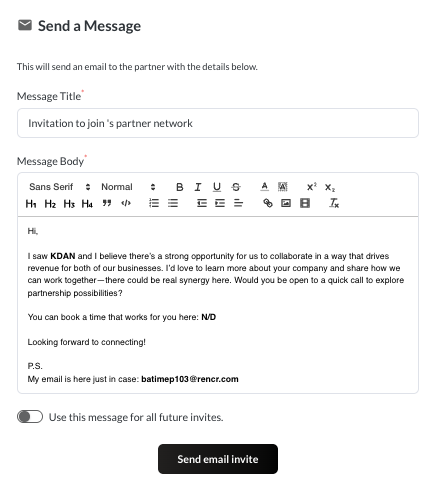
Fields marked as "N/D" indicate missing information, which can be requested through messaging.
Partner Interaction
Use Customize invite button to get in touch with the partner.
It will allow you to:
- Compose custom message to partner that they'll receive by email
- Include meeting links
- See your last used message template
Once invited, the potential partner will be added as "Prospect" to your Partner List
If you'd like to hide the partner from your PartnerConnect list, use "Not a fit"

This will hide the parter - you will still be able to find them by ticking Show ‘Not a Fit’ Partner
Visibility settings for your partners
Free tier users:
- Cannot modify partner visibility settings
- Partners control their own visibility
Paid plan users:
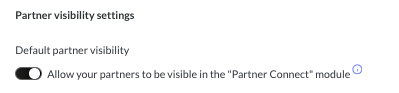
- Can set default visibility status
- Choose between visible or hidden by default
Digital meeting links in invites

Configure your digital meeting link in General settings to:
- Streamline communication
- Include meeting links in messages
- Facilitate partner discussions
Troubleshooting
If no matches appear:
- Verify profile completion
- Confirm all settings are saved
- Continue monitoring for new potential matches
- Check that all required fields are filled
Remember to maintain current profile information and regularly check for new partner matches in the system.
If you continue to experience issues after trying these steps, please contact Partnerplace support for further assistance at support@partnerplace.comWhen contacting support, please provide:
- A detailed description of the issue
- Steps to reproduce the problem
- Any error messages you've encountered
- Your account information (username/email)
This will help the support team address your concerns more efficiently.